top of page


How to save YOUR profile
Do YOU want to save your own personal profile & save progress before the server shutdown on March 20th?
Well no need to fear because these step by step guides will help you regardless of what platform you use!
How to save your Android profile
Here's a step by step guide to help YOU backup your profile & game progress on Android
STEP 1: Connect your device to a computer

The first thing you want to do is connect your Android device to a PC or Laptop, this will allow you full access to the important files.
You might need to change the USB settings on your device for full access.
(If you dont have access to a computer or laptop, you could also use a USB thumbdrive or micro sd card as a storage device)
Android users
STEP 2: Locate the document file
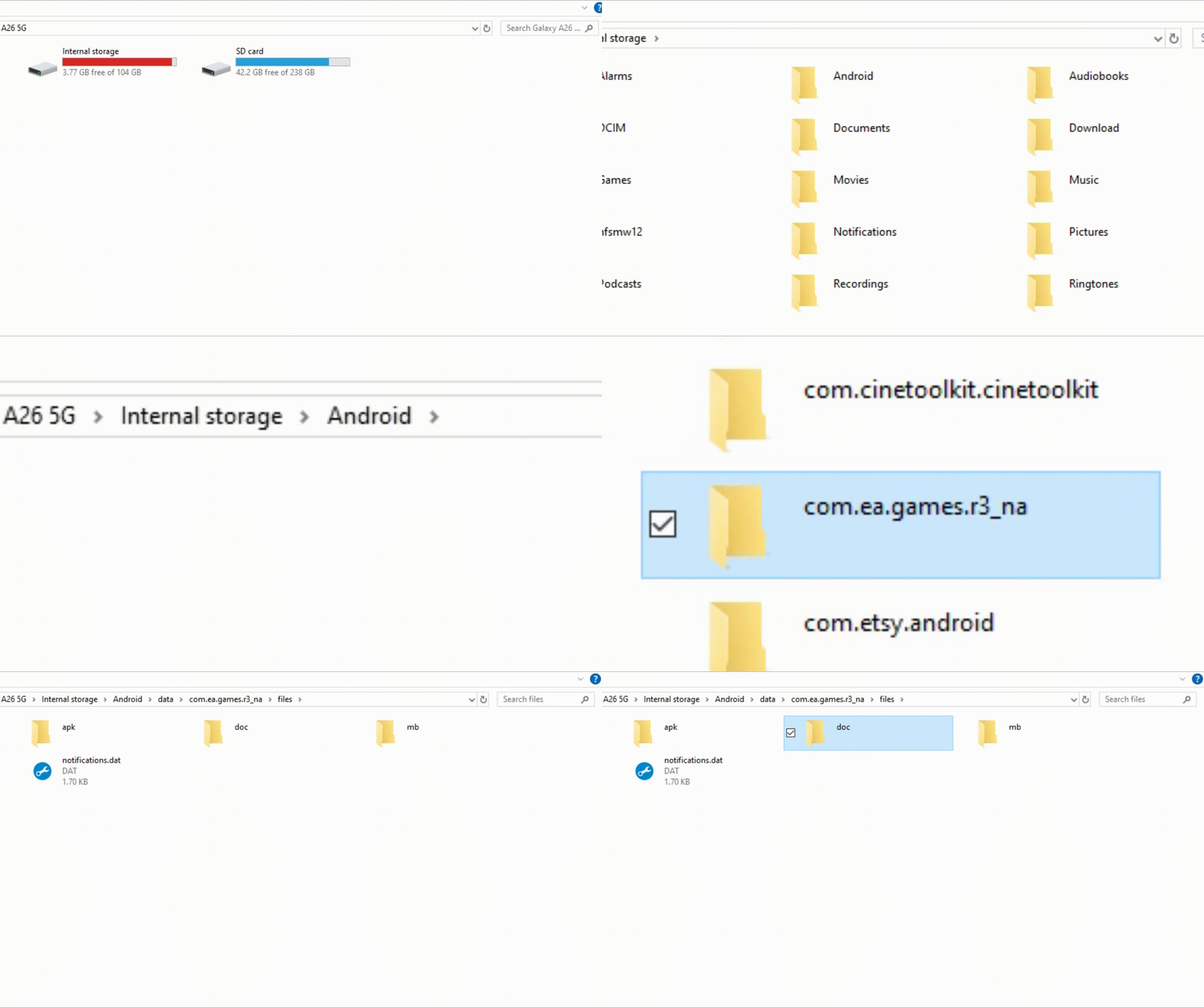
Once your device is connected, follow the path shown below to reach the save progress files...
Android/data/com.ea.games.r3/files/doc
Before you copy the entire doc folder, look inside & make a mental note of the item count.
That is a super easy way of making sure all the folders contents transfer successfully!
STEP 3: Copy & paste doc folder
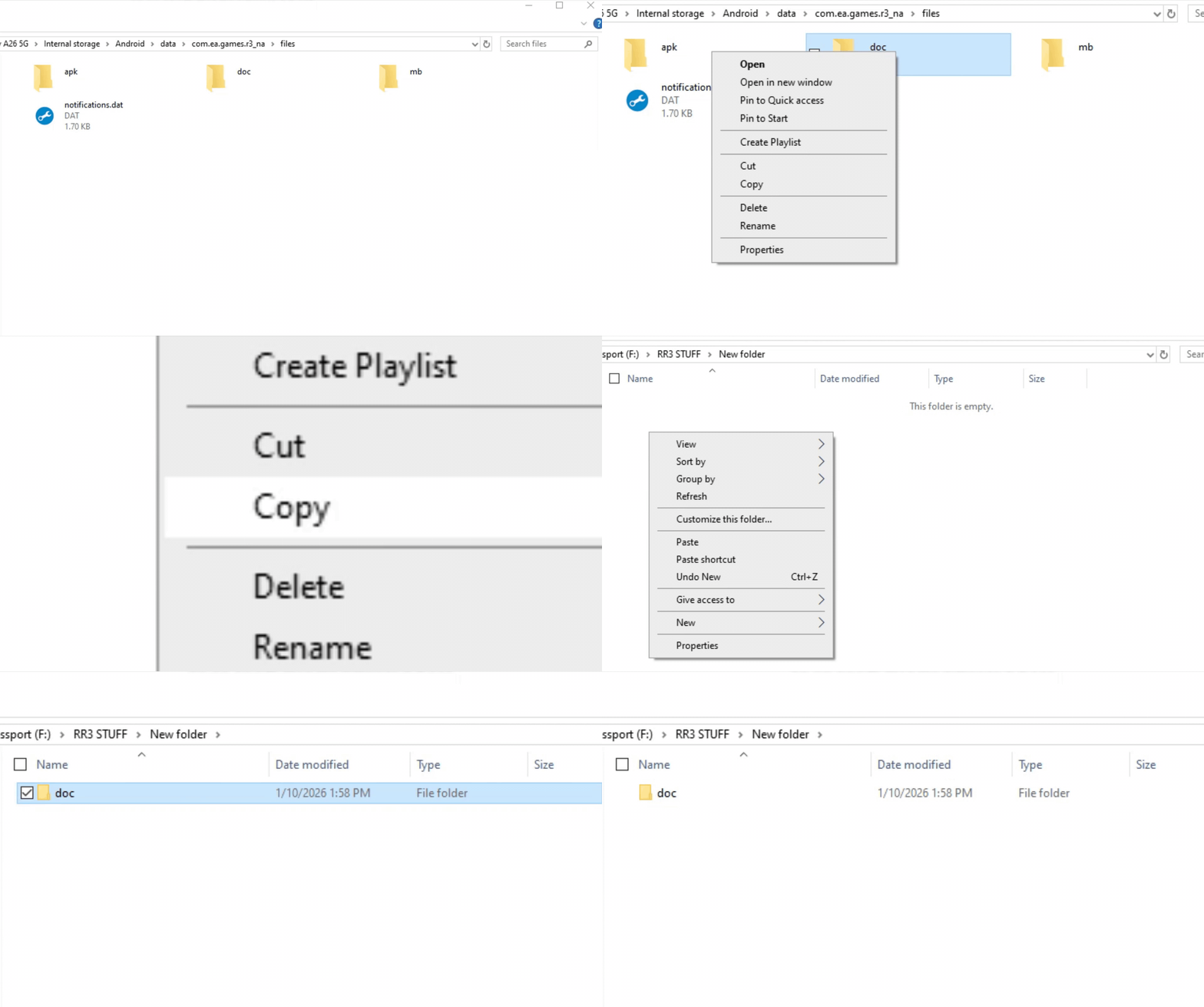
Select the copy option on the doc folder & choose where you want to paste it on your PC, place this folder somewhere prominent so you don't lose it.
(I personally recommend that you upload this file to your google drive or some other cloud storage service to the best safe keeping)
Congrats! you have created a backup folder that contains YOUR personal profile & save game progress! Stay tuned for further updates & steps on how to transfer this folder into an Emulator.
How to save your iOS profile
Here's a step by step guide to help YOU backup your profile & game progress on iOS
iOS users
STEP 1: Sync your account with Facebook

While more difficult to navigate, it's still possible to pull YOUR profile & game progress off of an iOS device!
The first thing you will need to do make sure that your game progress is connected to a Facebook account, if your profile is already synced to Facebook then you can skip this step.
STEP 2: Download & install Nox Emulator
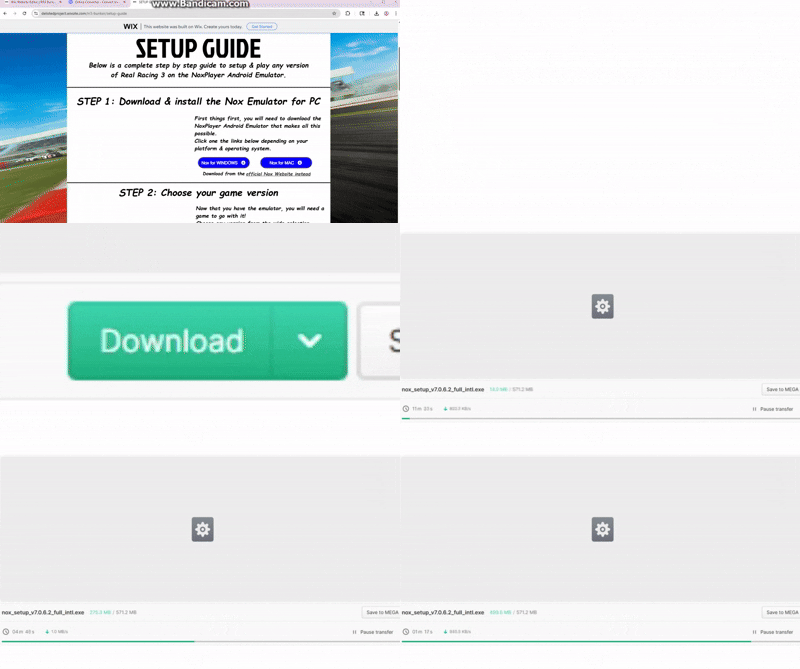
Next up, go ahead & download the NoxPlayer Android Emulator for PC. Choose between the Windows or Mac links below to get started.
Run the install application & follow the onscreen instructions to setup the program.
Download from the
STEP 3: Download emulation file

Now that you have the emulator, you need the game to run on it. Click the link below for a preinstalled emulator file that has the latest version of Real Racing 3 already on it!
STEP 4: Import emulation file
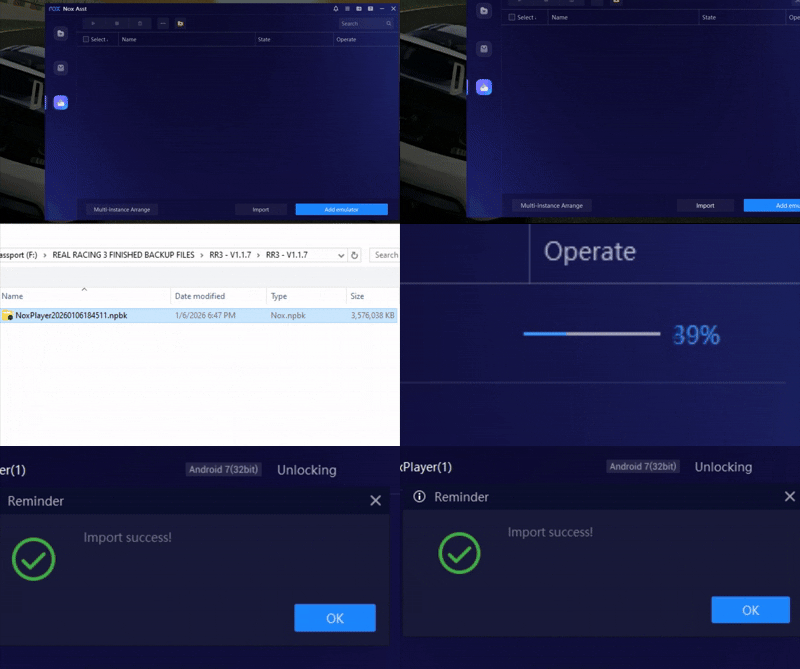
Now go ahead & start the Nox Asst program that was included with you NoxPlayer install, once it loads up go to the multi-drive manager page. There you will see an IMPORT button along the bottom of the window.
Click on it & a file explorer menu will appear, navigate to the Nox.npbk file you downloaded & select it. Then just wait for the IMPORT SUCCESS message to appear.
STEP 5: Boot up emulator & start game
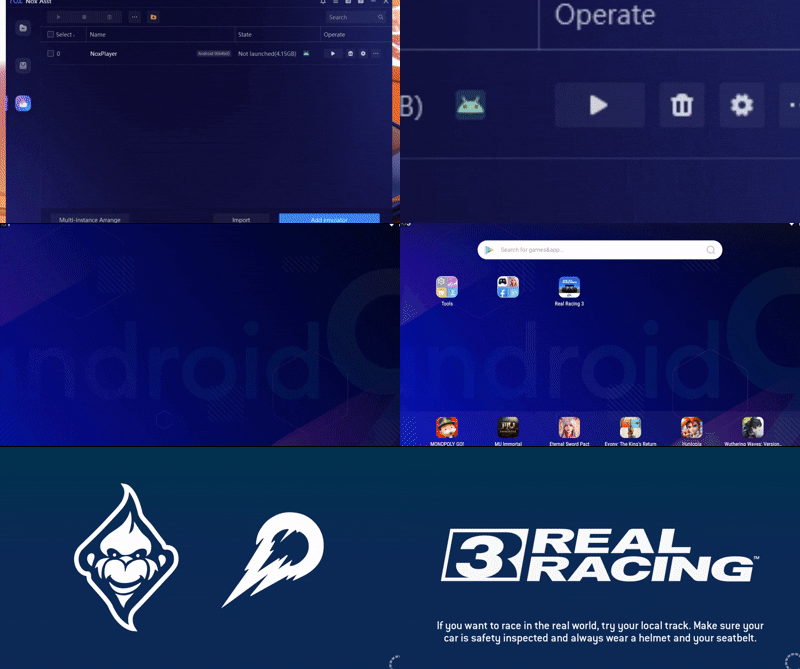
With everything downloaded & installed.
Click the play button & start the emulator, once on the android home screen loads up start the Real Racing 3 app.
STEP 6: Log back into Facebook account

Once on the main menu, go to the settings page & log into the same Facebook account as before.
If all is successful, you should be able to download the most recent cloud-save from your iOS device.
And BOOM! You now have your progress on another device!
But to actually locate the save file & back it up permanently, there's a few more steps left...
STEP 7: Locate & move save progress file
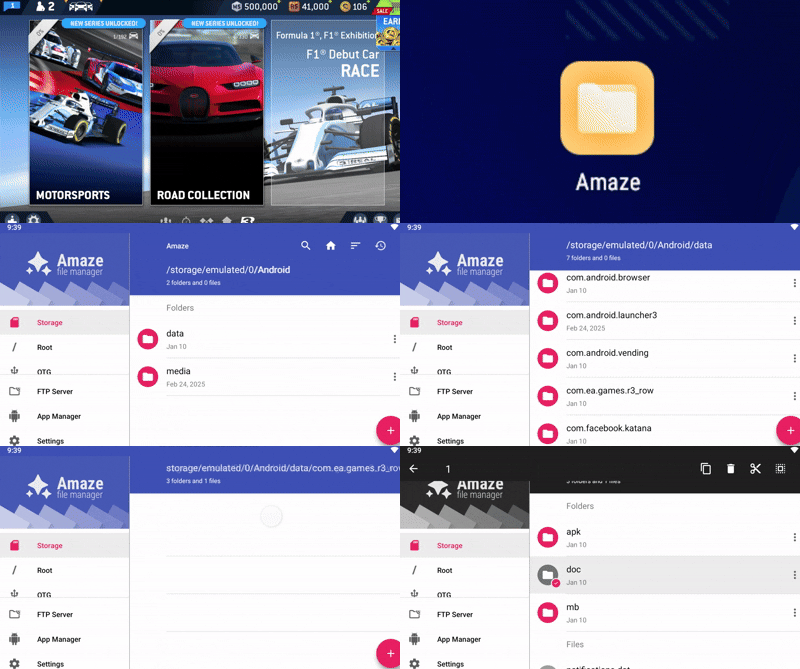
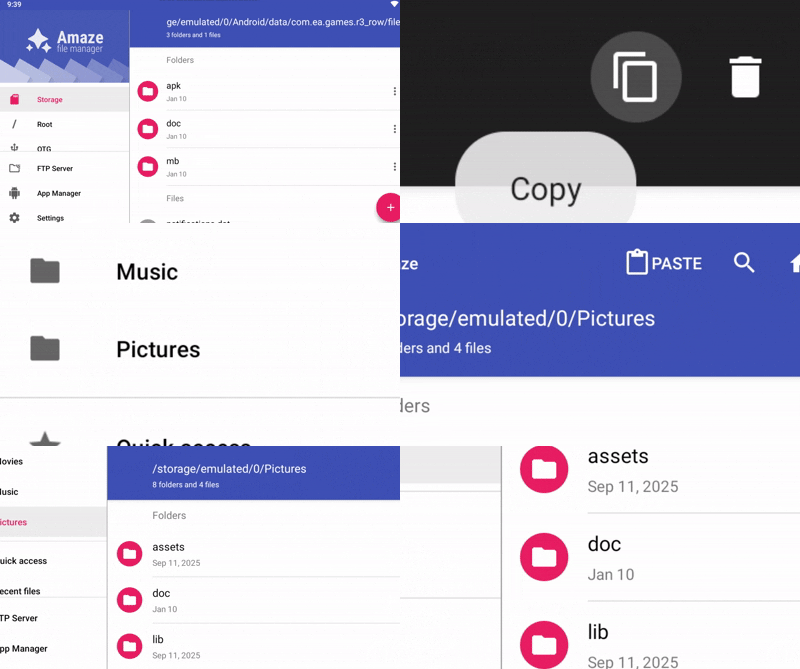
So to locate your save file & back it up, close the game & return to the emulator home page.
Open the Amaze File App & follow this path...
Android/data/com.ea.games.r3/files/doc
Click & hold on the doc folder until it's highlighted, then click the copy button & paste in the Pictures folder. Tap Ctrl+4 for more info...
(The pictures folder is this emulators shared folder location, where files can be transferred between the PC & the emulator)
STEP 8: Move folder to a secure location
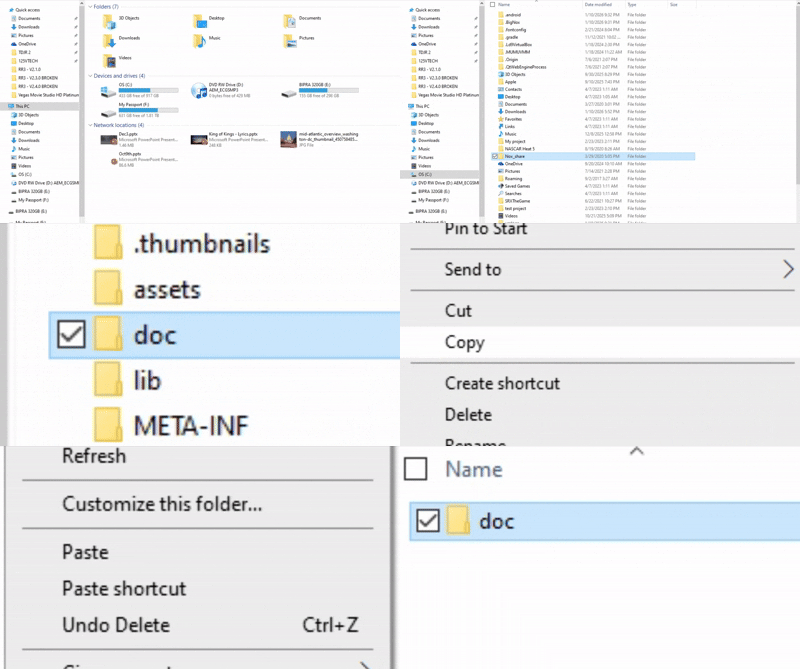
Okay home stretch!
Hit Ctrl+4 & take note of the PC share folder path, open your file explorer & follow that path to the doc folder.
Copy the doc folder & paste it wherever you'd like on your PC, but its highly recommended that you upload this folder to a cloud-service like Google Drive or extra safe keeping.
AND CONGRATS! You now have your iOS game progress preserved & backed up for continued play after March 20th!
bottom of page